
Productivity
Take 10 Minutes To Arrange The Apps On Your Phone
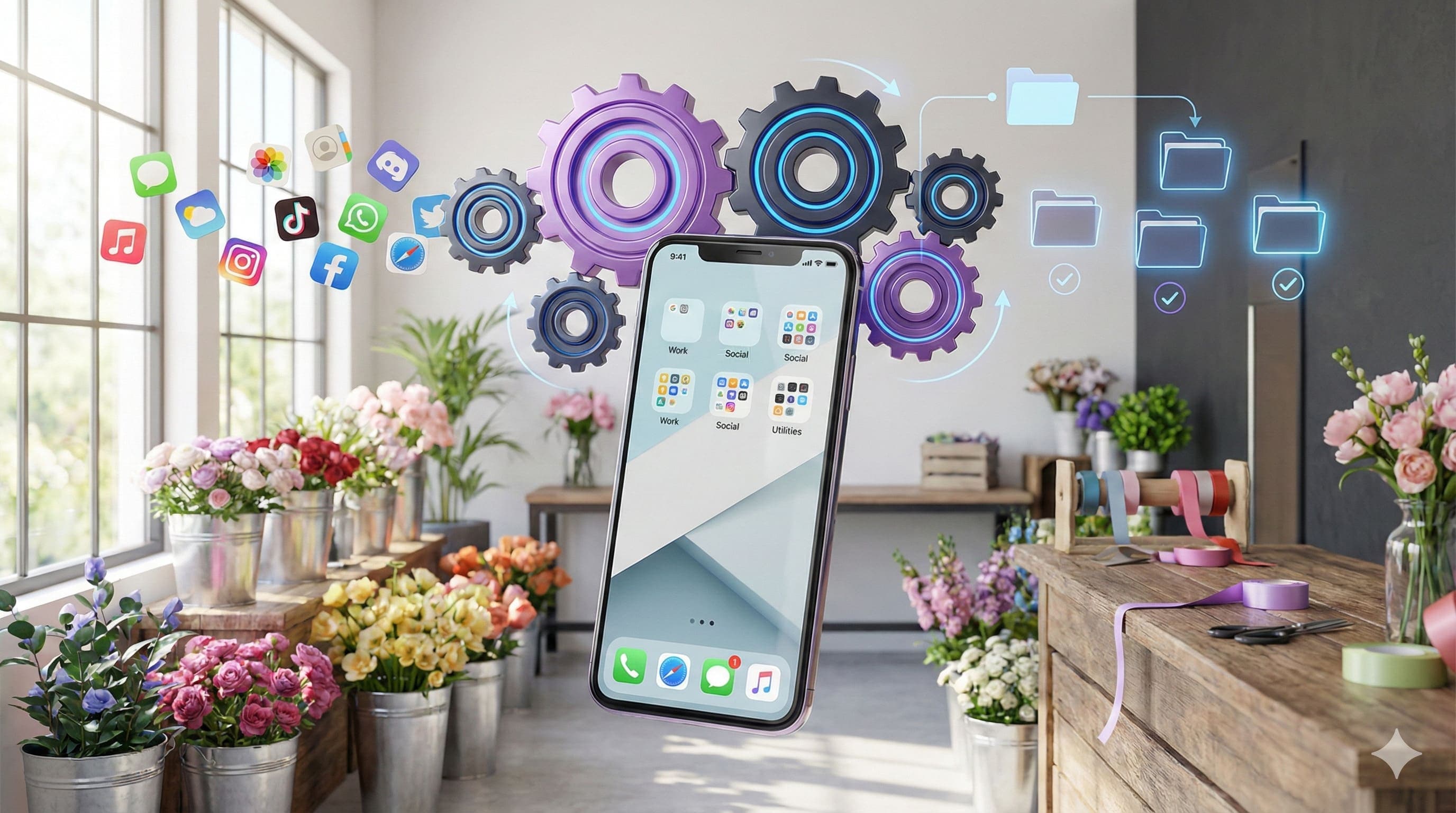
Arranging your phone’s apps intentionally can save hours each year - here’s how to tidy your screens in ten minutes.
By Rupert GoughPublished
Key takeaways
- Put business/work apps on the first screen - that's where you earn money, so access should be fastest
- Use folders to group apps by category (Social Media, Shopping, Utilities) and aim for 2-3 screens maximum
- Move rarely-used apps off the home screen or delete them entirely - iOS App Library stores them anyway
- The average person wastes 76+ hours per year just looking for apps; heavy users waste even more
- Spending 10-20 minutes organising your phone now can save hundreds of hours over the coming years
How many times a day do you open your phone to look at something? The answer varies from person to person, but for the majority of people, it is many, many times in a day. In fact, according to Internet Trends, the average smartphone owner unlocks their phone 150 times a day.
An often overlooked productivity enhancer is where you place the application icons on your phone. It's just one of many ways you can use your phone as a productivity tool. Here's a practical way to lay out your phone.
How should you arrange your app icons on your phone? #
So you've got 6 pages of icons sorted in "chronological order". In other words, from the first app that you ever downloaded ever to the latest one located on the most distant screen. Half the icons you don't use anymore (looking at you, Vine).
In other words, it's time to do a tidy-up, but where to begin? At the top level, it can be easy to sort the apps into 2 or 3 categories. These might be business-related, personal apps and, maybe, kids-related. The goal is to get your apps down to one page per category. This way, as you scroll through, you know that you are on the "business page" or the "personal page".
Because your business productivity is the priority - that's the one that you earn money from - the business apps should be first. Followed by your personal apps. It doesn't matter if you have to do an extra swipe to your personal apps at night. That time is off the clock.
If you have an app you use for both business and personal, put it on the business page. Remember, your priority is that every app you need for business is available at your fingertips quickly.
Use folders to arrange your app icons #
If you have too many apps for one screen (no one will blame you), you can use folders. These would group the apps by a second-level category. Categories you could arrange your icons might be:
- News
- Social Media
- Entertainment
- Health
- Shopping
- Audio
- Utilities
A folder can hold 9 icon apps but can have multiple pages. I don't tend to like multiple pages in the folders, instead opting for 2 folders with the same category name (for example, two "Social Media" folders). The benefit of this is that if a folder becomes full and I want to add a 10th icon, I create a new folder but only after considering whether there are any apps I want to delete. This means I am constantly assessing whether I need so many icons or apps on my phone.
Folders allow you to find your app quickly.
How to deal with unused but useful apps #
There are apps that have a small function but don't really deserve a place on your main 2 pages. An example of this might be the Apple Watch app or the calculator app (which can be gotten easily from the Control Center). In previous iOS versions, I held an extra folder labelled "Not Used". This folder also included an app that came with my Sony Headphones that I only used once but wanted around if I wanted to reset my headphones.
In the latest versions of iOS, Apple seems to have recognised this with the ability to either entirely delete an app or just remove it from the Home Screen. Swiping to the right gets you to the App Library, where all your apps are stored, including the unused ones you never use.
Are widgets a waste of Home Screen space? #
iOS 14 finally brought widgets to the home screen, allowing you to see small bits of information from particular apps. Uptake has been generally slow for the widgets, and it will be a personal decision whether you want a widget taking up valuable folder space. I don't tend to like them as a general rule. Often, I find the information they can provide is too minimal to be helpful. I have gotten to like a couple of widgets, though:
- Carrot Weather for its ability to both tell me the weather forecast and deeply disturb me at the same time
- iPhoto for its random photo choice, which can bring back some great memories
The information you need from an app - for example, your email - may be enough from a widget that you sacrifice some home screen space for the privilege. The priority for productive swiping should be to keep the number of app icon screens to 2-3 at the maximum.
How much time are you saving? #
Remember that the average phone user opens their phone 150 times; a heavy user will open significantly more. Potentially 300 or more times. With no particular order to your apps, you are potentially wasting 5-10 seconds swiping and finding apps every time you open them. An average person, at best, is wasting 12 minutes every day or 76 hours in a year just looking for the app they want. A heavy user (who is likely to have more apps) could be wasting close to 300 hours (300 opens x 10 seconds x 365 days).
This is a classic example of a habit that could save just a few seconds but is repeated many times a day can lead to significant improvements in productivity. Tidying your phone can be done in 10-20 minutes - it's one of the quickest ways to boost your productivity and efficiency. You could do it while you're watching TV tonight but it will save you hours of productivity in the years to come.
Of course, the best productivity trick might be to look at your phone less!
A useful companion: Eisenhower Matrix.
Quick Questions
How should I arrange my phone apps for productivity?
Put business apps on the first screen (highest priority), followed by personal apps. Use folders to group apps by category, aim for 2-3 screens maximum, and remove rarely-used apps from the home screen. The goal is finding any app in seconds, not minutes.
How much time do people waste looking for apps?
The average smartphone user opens their phone 150 times a day. With unorganised apps, you can waste 5-10 seconds each time looking. That's potentially 76 hours per year for average users - heavy users could waste close to 300 hours annually.
Are phone widgets worth the home screen space?
It depends on the widget. Most provide too little information to be useful and take up valuable app space. Widgets that show weather, calendar events, or photos can be worthwhile. Keep your priority: 2-3 screens maximum for app icons.
What should I do with apps I rarely use?
In iOS, you can remove apps from the home screen while keeping them in the App Library. This keeps your main screens clean while preserving access if needed. Apps you never use should be deleted entirely to reduce clutter.
Other articles worth reading

AI & Automation
ChatGPT for NZ Small Business: A Practical Starting Guide
Start with a low-risk drafting or summarising task, check the result and measure the benefit. Useful AI adoption depends on your work, not a promised weekly time saving.

Productivity
10 Quick Ways to Improve Productivity and Efficiency
Bite‑sized actions you can take right now to do more and do it better - improve both productivity and efficiency with simple, practical changes.

Productivity
Understanding the Difference: Productivity vs Efficiency and How to Improve Both
Productivity measures what you accomplish; efficiency measures how well you use resources. Discover strategies to improve both.