Productivity
How to Move from a Written To‑Do List to a Digital To‑Do List
Transition from paper to digital to-do lists for synchronisation, automation, collaboration and scalability. Step-by-step guide.
Use a small practical exercise to apply the ideas in this guide. Try the Eisenhower Matrix.
Key takeaways
- Digital lists offer reminders, sync across devices, recurring tasks, and collaboration - things paper can't do
- Choose an app with clean UI and cross-platform support; popular options include Todoist, TickTick, and Microsoft To Do
- Start small: migrate 20-30 tasks first to test the app before moving everything
- Use priorities, tags, and filters to organise - this is where digital lists really shine
- Review daily and weekly; archive old tasks so your list stays clean and useful
How to Move from a Written To‑Do List to a Digital To‑Do List #
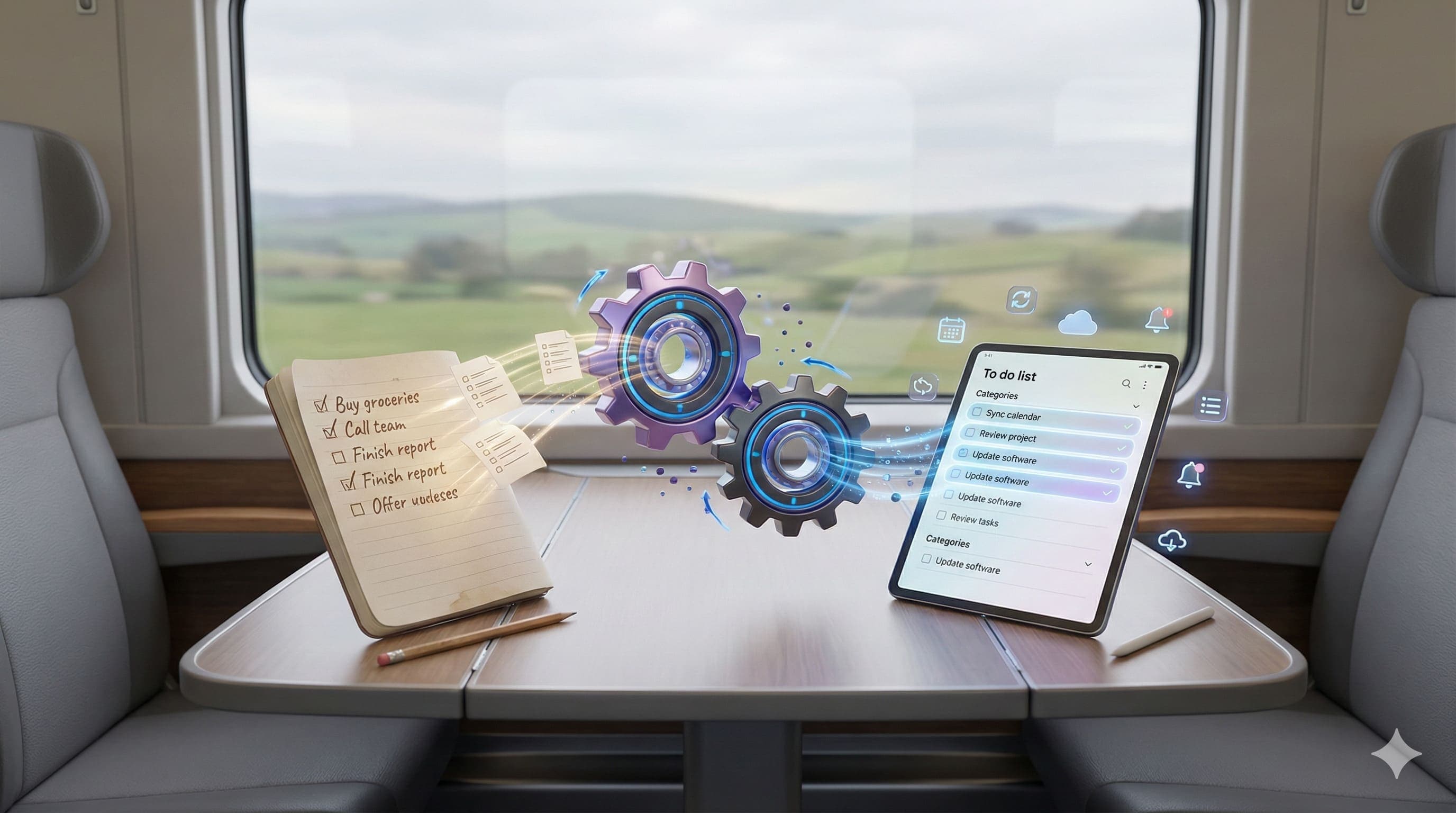
Many people start with a paper‑based to‑do list. It's tangible, simple, and immediately rewarding. But as tasks multiply, deadlines loom, and responsibilities span devices or team members, paper lists begin to show their limits. Digital to‑do lists bring flexibility, reminders, syncing, collaboration and many more benefits of using a to-do list. If you're ready to make the move, here's how to transition smoothly.
Why go digital? #
Before you dive in, it helps to understand what you're gaining. Some of the advantages of digital to‑do lists (vs paper) include:
- Accessibility and real‑time sync: Your list is available wherever you are - smartphone, tablet, laptop. Changes in one place update everywhere.
- Reminders, alerts & scheduling: Never miss due dates because your tool can nudge you. Digital systems can alert you when a deadline is coming, or reorder tasks by importance.
- Recurring tasks & automation: No more rewriting the same weekly chore or monthly bill task. Many apps let you set tasks to repeat.
- Organising, filtering & tagging: With digital tools you can use tags, categories, projects, priorities, colour codes etc. This lets you quickly view only what's relevant.
- Collaboration: If tasks involve others, you can share lists, assign tasks, track progress together. Paper doesn't collaborate well.
The 6 Steps to Transition Smoothly #
Here's a practical six‑step plan to move from paper to digital without chaos.
Step 1: Choose the Right To‑Do List App #
Not all apps are created equal. What works for one person may be overkill or insufficient for another. Key criteria:
- Cross‑platform support (mobile, desktop, web)
- Clean UI and minimal friction to add/update tasks
- Features you'll use: reminders, repeating tasks, tags/categories, filters
- Good free tier if budget matters
- Integration options (with calendar, email, other tools)
Popular options in 2025 include Todoist (often called "best overall"), TickTick, Microsoft To Do, Any.do, Things3. For something with a unique twist, check out our review of CARROT To-Do List.
Step 2: Set Up Your Account Securely #
Once you choose an app:
- Create the account, set any preferences (time zone, default notification style).
- Use a strong password; enable two‑factor authentication (2FA) if available to protect your personal information.
- Sync across devices so you can add or consult tasks whether you're on a phone, tablet or computer.
Step 3: Migrate Some Tasks / Test Load #
Rather than try to digitise every paper task immediately:
- Start with 20‑30 tasks (from recent ones or upcoming ones) to see how the app feels.
- Add details like due dates, notes, tags. See if the input method, navigation etc. work for you across devices.
Step 4: Set Priorities & Structure #
Structure is what often makes digital lists valuable:
- Use priority levels (many apps offer "high / medium / low" or even more granularity)
- Tag or group tasks by project, context ("home", "work", "shop", etc.)
- Try frameworks like the Eisenhower Matrix (urgent vs important) to decide ordering.
Step 5: Explore and Use Features That Boost Efficiency #
Most apps have helpful features you might not use immediately:
- Recurring tasks
- Reminders / notifications
- Subtasks or checklists within tasks
- Integrations (calendar, email, maybe your messaging tools)
- Filters/views (show only tasks due today, or by project, or by tag)
These features can help prevent tasks slipping through the cracks.
Step 6: Review, Update & Maintain Your List Regularly #
Digital lists aren't "set and forget":
- Review daily or at least at set times (morning or end of day): mark complete, add new, adjust priorities.
- Weekly or bi‑weekly review: check whether some tasks recur, whether categories/tags are still useful.
- Archive or delete old tasks so list doesn't get bloated.
When Digital Might Not Be as Useful #
Digital tools are powerful but not always the right fit in every situation. Some red flags:
- You need simplicity & low friction: If the app feels too complex, you may avoid using it. For small daily lists, paper can still feel more immediate.
- Poor multi‑device support: If you often switch devices and the tool doesn't synch well, that's frustrating.
- Over‑feature overload: Sometimes apps have so many features that they slow you down vs speeding up.
- Costs / subscription fatigue: If the free version is too limited and the paid plans expensive for what you need, the benefit might not be worth the cost.
Tips for Making the Change Stick #
Here are ways to ensure you don't revert back to old habits:
- Keep your paper list nearby initially, but try to add almost everything to digital first.
- Use reminders or timed prompts (on your phone) as nudges to check your digital list regularly.
- Use templates or recurring tasks to automate the mundane.
- Celebrate small wins: seeing tasks completed, exploring views that help you feel on top of things.
- Don't over‑organise at first. Sometimes a simple list with due dates and priorities is more effective than elaborate tagging.
Examples of Good To‑Do List Apps & Their Strengths #
Here are some strong options (as of 2025) and what they do well:
| App | Strengths |
|---|---|
| Todoist | Excellent balance of power and simplicity; great cross‑platform; good filters/tags/views. |
| TickTick | Very flexible with calendar integrations, multiple views, and features even in lower‑cost plans. |
| Microsoft To Do | Good if you already use Microsoft tools; integrates well with Outlook etc. |
| Any.do | Simple, clean; reminders & recurring tasks. |
| Remember the Milk | Reliable, long‑standing app; strong reminder features; good for those who prefer task‑centric tools rather than project‑management style. |
The First Week: What to Expect #
In the first few days of using a digital to‑do list you might feel some friction:
- Tasks feel slower to add until you get used to the interface.
- You'll forget to check the app sometimes. Nudges / notifications help.
- There might be duplicates between your paper notes / mental reminders and the app. Over time you'll consolidate.
If after a few days the app is resisting usage, consider whether the problem is the tool or the habit. Sometimes switching to a simpler app or refining workflow helps more than swapping many features.
Final Thoughts #
Transitioning from a written to‑do list to a digital one is more than changing medium: it's about enabling flexibility, automation, reminders, and growth. Once you embrace that change, the mental load eases, the risk of forgetting drops, and your ability to organise tasks at scale improves. Over time, you may find that the digital list doesn't just replace paper - it reshapes how you think about what you need to do.
A useful companion: Automation ROI Calculator.
Quick Questions
Why should I switch from paper to a digital to-do list?
Digital lists offer accessibility anywhere (phone, tablet, laptop), automatic reminders and alerts, recurring task automation, better organisation with tags and filters, and collaboration features. Paper can't sync, remind you, or handle recurring tasks automatically.
Which to-do list app should I use?
Popular options in 2025 include Todoist (great balance of power and simplicity), TickTick (flexible with calendar integrations), Microsoft To Do (integrates with Outlook), and Any.do (simple and clean). Choose based on cross-platform support, features you'll use, and budget.
How do I transition from paper to digital without losing everything?
Start with 20-30 tasks to test the app. Set up priorities and structure (tags, categories). Explore features like reminders and recurring tasks. Keep paper nearby initially but add new tasks digitally. Review and update regularly. Give it a week to settle in.
What if digital feels too complicated?
If the app feels too complex, you may avoid using it. Don't over-organise at first - a simple list with due dates and priorities is effective. If it's not working after a week or two, try a simpler app rather than giving up on digital entirely.
Other articles worth reading
AI & Automation
ChatGPT for NZ Small Business: A Practical Starting Guide
Start with a low-risk drafting or summarising task, check the result and measure the benefit. Useful AI adoption depends on your work, not a promised weekly time saving.

Productivity
10 Quick Ways to Improve Productivity and Efficiency
Bite‑sized actions you can take right now to do more and do it better - improve both productivity and efficiency with simple, practical changes.

Productivity
Easy Wins: Using Zapier to Automate Admin Tasks
Connect your apps to remove repetitive tasks and free up time. Straightforward Zapier automations for admin and business workflows.